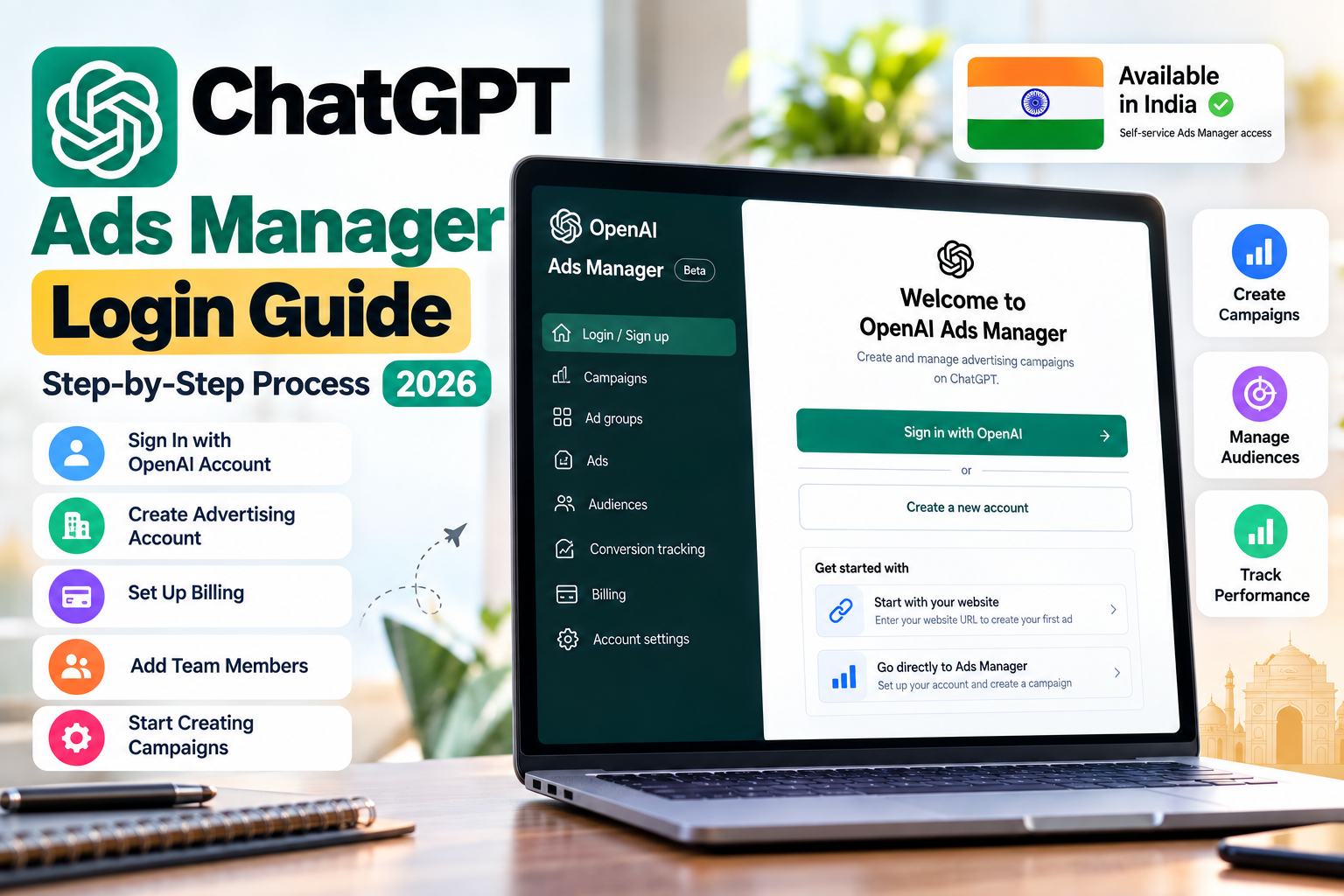
If you want to advertise on ChatGPT, one of the first steps is accessing OpenAI Ads Manager. The platform allows advertisers to create, launch and manage advertising campaigns designed to reach ChatGPT users.
OpenAI currently provides self-service Ads Manager access in India, subject to eligibility and availability requirements. Businesses can sign in with an existing OpenAI account or create an account during the advertising setup process.
For a complete overview of advertising on ChatGPT, read our How to Run Ads on ChatGPT in India.
What Is ChatGPT Ads Manager?
OpenAI Ads Manager Beta is the advertising platform used to create, launch and manage campaigns for ChatGPT Ads.
Advertisers can use Ads Manager to manage advertising accounts, campaigns, billing, users and campaign performance from one place.
OpenAI currently describes Ads Manager as a beta product. This means features, campaign options and advertising capabilities may continue to change as the platform develops.
How to Log In to ChatGPT Ads Manager
Step 1: Open OpenAI Ads Manager
Go to the official OpenAI Ads Manager website and select Login or Sign up.
You can use an existing OpenAI account associated with your work email or create a new account if you do not already have one.
Step 2: Sign In With Your OpenAI Account
Use the OpenAI account that you want to associate with your advertising activity.
If your business already has an advertising account, an administrator can invite you to that account. You do not need to create another advertising account simply to access an existing one.
Step 3: Choose Your Setup Method
During the signup process, OpenAI currently provides different ways to begin setting up advertising.
- Start with your website: Enter your website URL and allow Ads Manager to help you begin creating an advertisement and campaign.
- Go directly to Ads Manager: Access Ads Manager and complete the advertiser account setup before creating a campaign.
Both options can lead to the Ads Manager environment where you can manage your advertising activity.
How to Create an OpenAI Advertising Account
After signing in, you need to provide the required advertiser and business information.
OpenAI's current account setup process asks for an advertiser name and other required account details. When an account is initially created, the advertiser name may be used as the initial Account Name, Brand Name and Legal Name. These details can subsequently be managed within Ads Manager.
Your Legal Name should accurately represent the registered business entity, while your Brand Name should represent the name customers recognize.
Using accurate and consistent business information can help avoid problems during account verification and campaign review.
How to Set Up Billing in Ads Manager
Billing needs to be completed before advertising campaigns can deliver.
Inside Ads Manager, open the Billing section and follow the instructions provided for your advertising account.
Depending on the account setup, you may need to provide payment information and billing details such as your business name, billing address and invoice email.
Make sure your billing information accurately represents the advertiser and legal entity associated with the advertising account.
Is ChatGPT Ads Manager Available in India?
Yes. India is currently listed by OpenAI as a country where self-service Ads Manager is available.
However, availability can depend on the country of the legal entity that will advertise and be billed. OpenAI may also change the list of supported countries as the advertising platform expands.
Businesses should therefore check the current OpenAI Ads Manager availability information before creating an advertising account.
Can I Use My Existing ChatGPT Account?
Yes. OpenAI's current setup instructions allow eligible users to sign in using an existing OpenAI account associated with their work email.
If you already use ChatGPT with an OpenAI account, you may be able to use that account to begin the Ads Manager signup process, subject to eligibility and access requirements.
Using an existing account can make the initial login process simpler because you do not necessarily need to create a completely separate OpenAI login.
How to Access an Existing ChatGPT Ads Account
If your company already has an OpenAI advertising account, ask an administrator of that account to invite you.
The administrator can use the Users section in Ads Manager to invite your email address and assign an appropriate role.
After receiving the invitation, sign in using the same email address associated with the invitation.
This approach is generally preferable to sharing a single username and password among multiple employees or agency members.
ChatGPT Ads Manager User Roles
Businesses can provide different levels of access to people working on their advertising accounts.
- Admin: Provides broad administrative access to the advertising account.
- Member: Can work with supported advertising and campaign-management functions.
- Viewer: Provides view-only access to advertising resources.
Choosing the appropriate role is important when multiple employees, marketing professionals or agencies are working on the same advertising account.
Can an Agency Manage a Client's ChatGPT Ads?
Yes. Businesses can invite other users to an existing advertising account and assign appropriate access levels.
This can be useful for digital marketing agencies that manage ChatGPT advertising campaigns for clients.
Instead of sharing one login, a client can invite agency team members individually and provide each person with the access they need.
This also makes it easier for the business to control who can manage campaigns and who can only view advertising information.
How Many OpenAI Ads Accounts Can I Create?
OpenAI currently limits self-service creation of additional advertising accounts based on the number of advertising accounts a user already belongs to.
Once a user belongs to 10 or more advertising accounts, they cannot create another advertising account themselves through the standard self-service process.
The count includes advertising accounts the user has created as well as accounts they have joined through invitations.
This restriction applies to creating additional accounts. It does not necessarily prevent an eligible user from joining an existing advertising account when invited by an administrator.
What If the ChatGPT Ads Manager Login Does Not Work?
If you cannot access Ads Manager, first check that you are using the correct OpenAI account and that you have access to the correct advertising account.
Common areas to check include:
- Correct OpenAI login
- Correct advertising account
- Account invitation
- User role
- Business verification status
- Billing setup
- Advertising-account eligibility
- Organization or administrator permissions
If your company already has an OpenAI organization or advertising setup, additional administrator permissions may be required.
Why Can't I Create an OpenAI Ads Account?
There can be several reasons why the option to create another advertising account is unavailable.
You may have reached the advertising-account creation limit, may not have the required organization permissions, or the account may not meet the requirements for creating an additional advertising account.
Having fewer than 10 advertising accounts does not automatically guarantee that another account can be created. Other eligibility, organization or platform requirements may also apply.
What If My Business Verification Fails?
Business verification can fail if OpenAI cannot verify information associated with the business identity, ownership or other required details.
Before submitting verification information, make sure your business details are accurate and consistent across your advertising account, advertisements and landing pages.
Your advertisement and landing page should also clearly represent the business being advertised.
If verification remains unresolved, use the support options available through OpenAI Ads Manager.
What Should I Do After Logging In?
After accessing Ads Manager, complete the essential account setup before launching your first campaign.
- Add or confirm your business logo.
- Review your Account Name.
- Confirm your Brand Name.
- Confirm your Legal Name.
- Complete billing setup.
- Complete any required verification.
- Invite team members if necessary.
- Review your advertising account information.
- Create your first campaign.
What Is the Next Step After ChatGPT Ads Manager Login?
Once your advertising account is ready, the next step is creating your first ChatGPT advertising campaign.
Depending on the available campaign options, you can select an objective, define your budget and targeting, create your advertisement and configure the landing page before submitting the campaign for review.
For the complete campaign setup process, read our How to Run Ads on ChatGPT in India.
ChatGPT Ads Manager Login: Quick Checklist
- Open OpenAI Ads Manager.
- Select Login or Sign up.
- Sign in with your OpenAI account.
- Choose the appropriate setup method.
- Enter your advertiser information.
- Confirm your business details.
- Set up billing.
- Complete verification if required.
- Invite team members if necessary.
- Review your advertising account.
- Create your first advertising campaign.
Final Takeaway
Accessing ChatGPT Ads Manager is the first step toward advertising on ChatGPT. Businesses in India can currently access self-service Ads Manager, subject to OpenAI's eligibility and availability requirements.
After signing in, advertisers should complete their account information, billing and any required verification before launching a campaign.
If you are ready to advertise on ChatGPT, the next step is to create a campaign and select the advertising objective that best matches your business goal.
For the broader strategy, campaign setup and advertising process, see our How to Run Ads on ChatGPT in India.